

Connect MySQL to Slack: ask your database questions in a channel
Connect MySQL, generate the agent, add Slack, then ask in #ops. Your database is one @mention away.
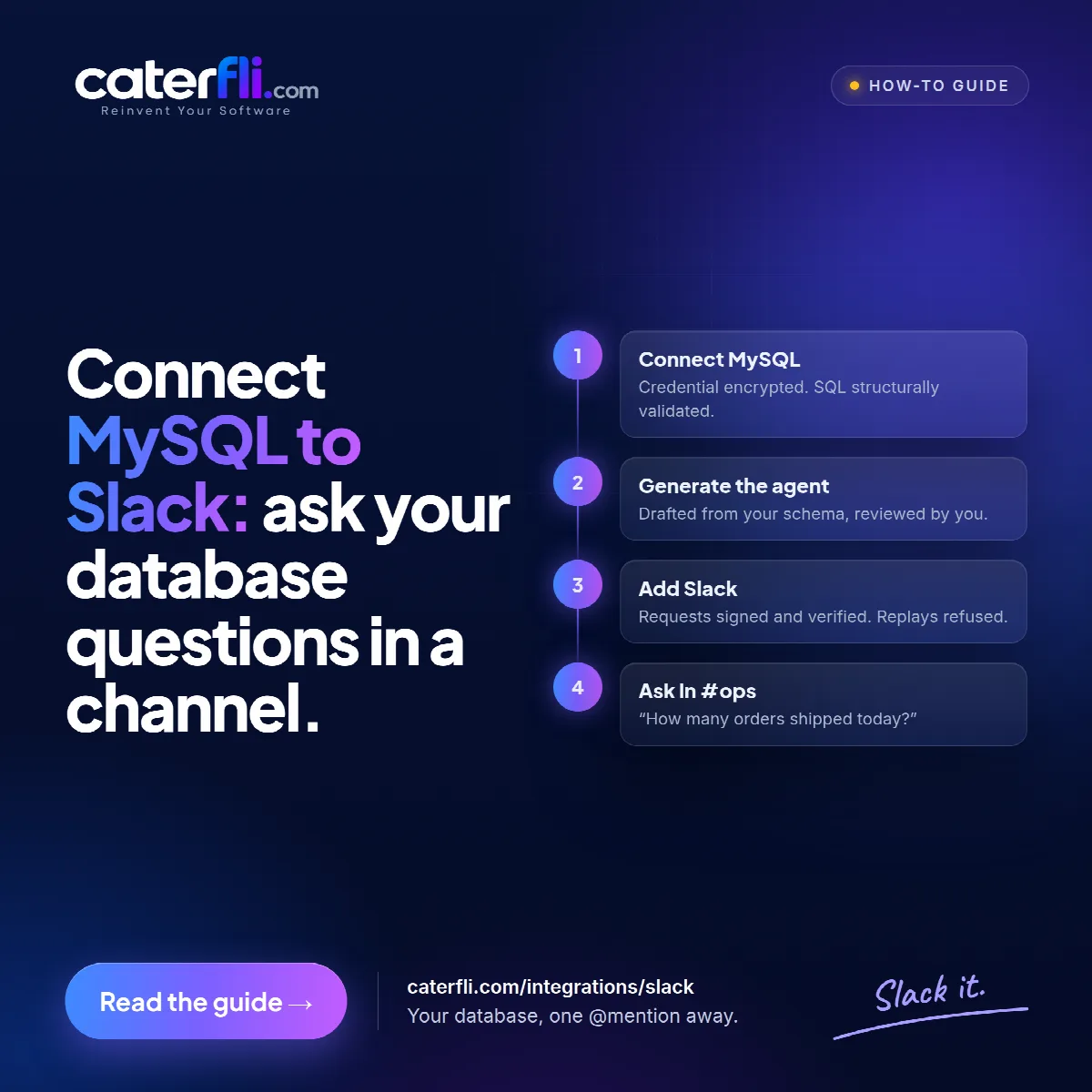
The goal is simple: someone in #ops types @caterfli how many orders shipped today? and gets an answer in the thread, without anyone opening a dashboard or writing SQL. Getting there takes four steps, and most of the time goes on the Slack app settings rather than on Caterfli.
1. Connect MySQL
Add a database connection with the host, port (3306 by default), database name, username and password. The password is encrypted before it is stored, with a key of its own, and decrypted only inside the connector at the moment a call is made. It never appears in a prompt, a log or a trace.
Create a dedicated database account for this and grant it the least it needs. The platform's own restrictions are a second line of defence, not a replacement for database permissions.
Discovery then reads the schema. Every table you leave ticked gets a read tool and a count tool, with the real column list in each tool's argument schema, so the agent can only filter and sort on columns that exist. Untick anything the agent has no business seeing.
The connection starts read-only. Writes and ad-hoc SQL are separate switches, both off. Whatever is switched on, every statement is validated structurally before it runs: one statement only, an allow-listed leading keyword, no schema changes, no UPDATE or DELETE without a WHERE, and values always passed as bound parameters.
2. Generate the agent
Caterfli drafts an agent from what discovery found: a name, a purpose, written instructions describing your data, and the tools. The draft is deterministic, so regenerating it gives the same result rather than a fresh gamble.
Review it before deploying. Narrow the tools to what the job needs, since an agent with four relevant tools behaves more predictably than one with forty. Then ask it a real question in the test panel and watch each step it takes.
3. Add Slack
Slack needs two secrets and one manual step:
- Bot user OAuth token, starting
xoxb-, from OAuth & Permissions once the app is installed. - Signing secret, from Basic Information. This is what proves a request came from Slack.
Save the channel and Caterfli shows you a Request URL. Paste it into Event Subscriptions in your Slack app and subscribe to message.channels and app_mention. Slack's verification challenge is answered automatically.
Every request is checked against the signing secret, over the raw body. A request whose timestamp is more than five minutes old is refused, so a correctly signed request captured in transit cannot be replayed later. Slack also retries any delivery it has not heard back about within three seconds, which an agent turn routinely exceeds, so a repeated delivery of the same message is dropped. You get one answer, not three.
Finally, add people to the allowed senders. The list starts empty, which means nobody, so a freshly connected bot answers no one. Slack senders are member ids beginning with U, found under "Copy member ID" on a profile. Ids rather than display names, because a display name can be changed.
4. Ask in #ops
Mention the bot. Mentions and link markup are stripped before the agent reads the message, and the reply lands in the thread it answers. The bot ignores its own posts, edits and join messages, so it never ends up answering itself.
Nothing about the agent changes because the question came from Slack. It is the same runtime, the same tool registry and the same approval gate as web chat. A request to change something stops for approval exactly as it would anywhere else. If you want a channel to reach only some of the agent's tools, it can be limited to a list of its own.
The full Slack setup and the MySQL connector each have their own page. Once both are in place, the database is one mention away.
0 comments
Sign in to join the discussion.